Your agents keep working.
See the one that needs you.
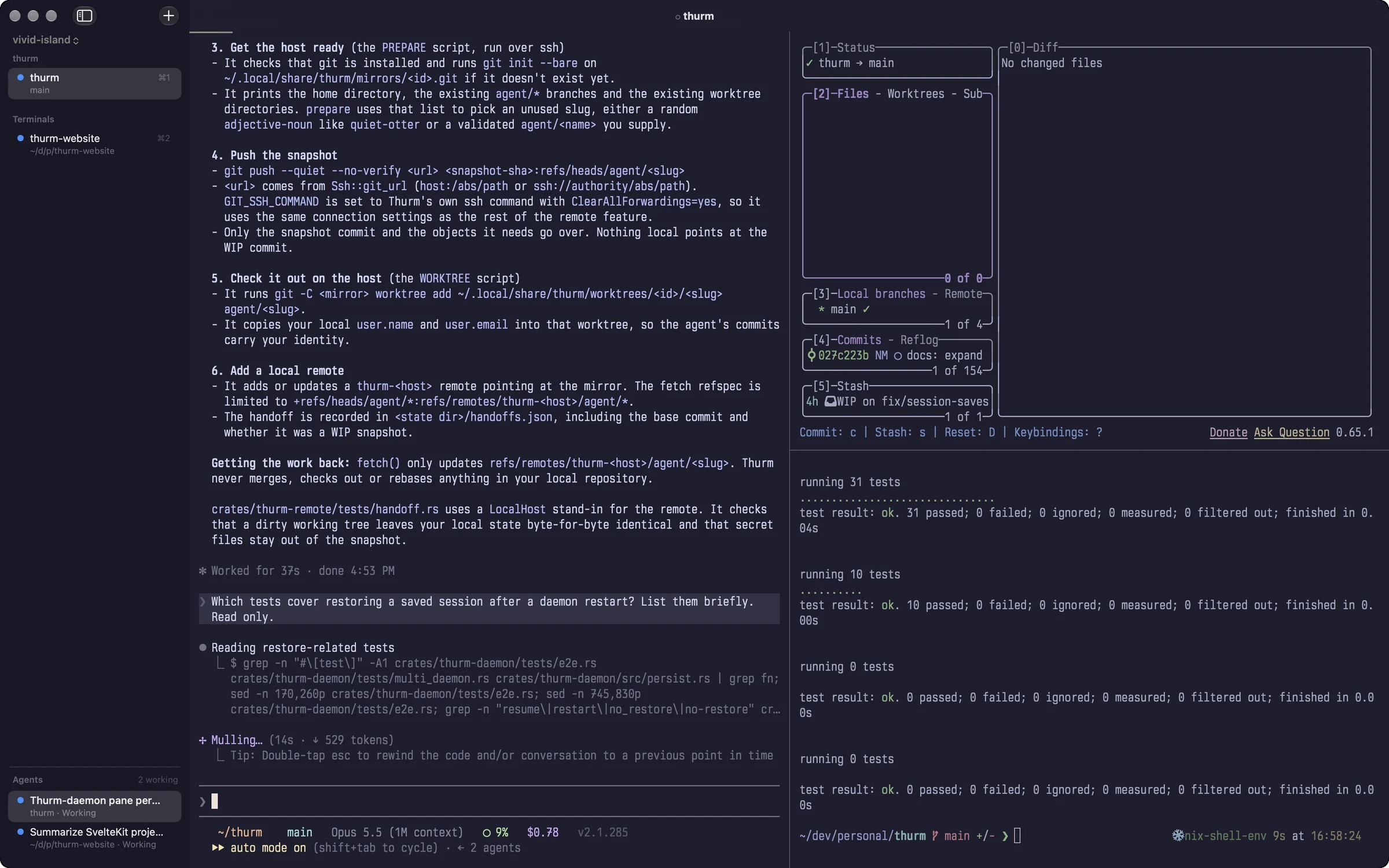
Thurm is a native macOS terminal for shells and coding agents. A daemon runs your shells, so agents keep working after you quit the app. Follow the same sessions on a remote host, or answer them from your iPhone or a browser.
macOS 14 or later on Apple silicon. Open source, Apache 2.0.
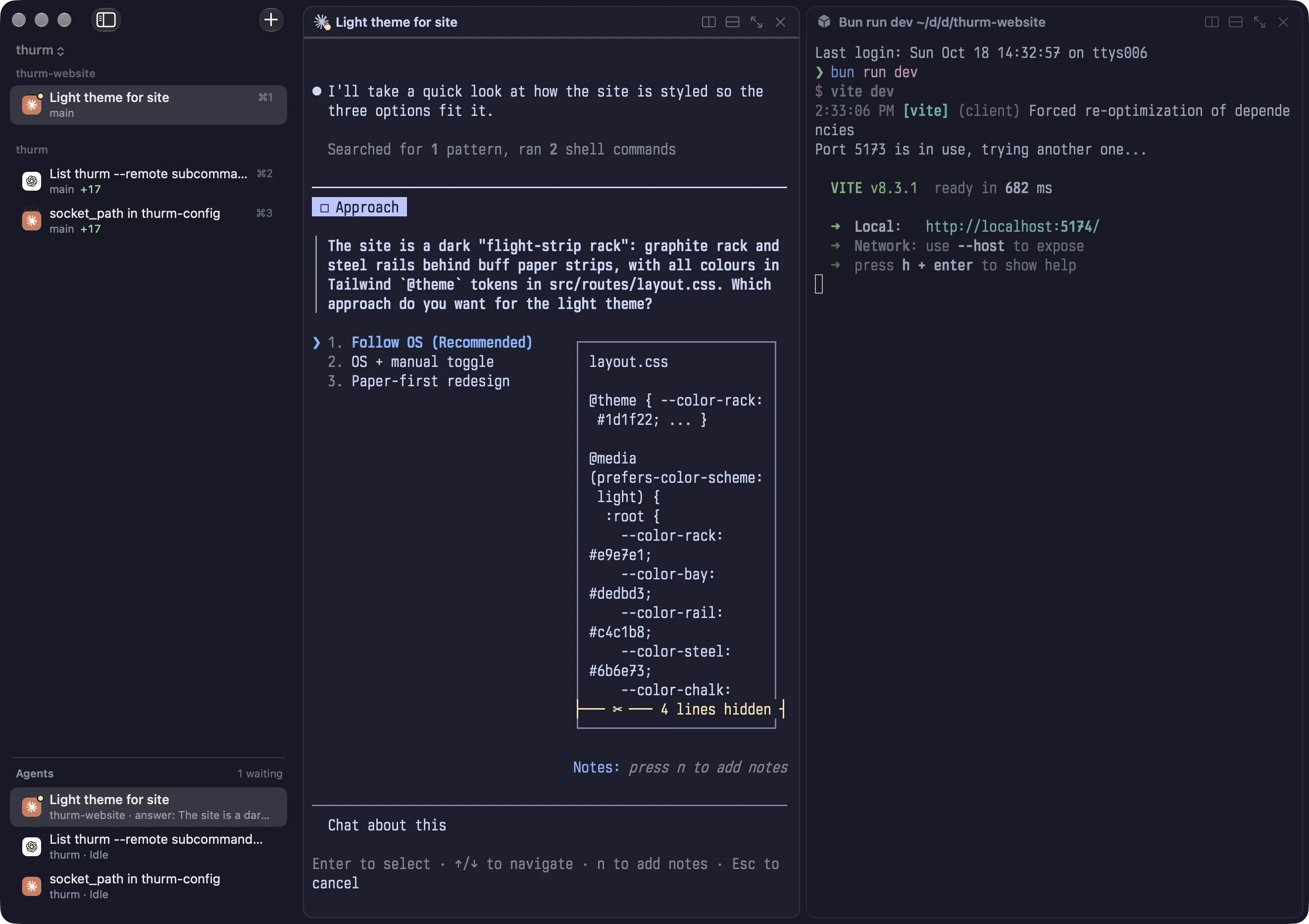
See which agent needs you
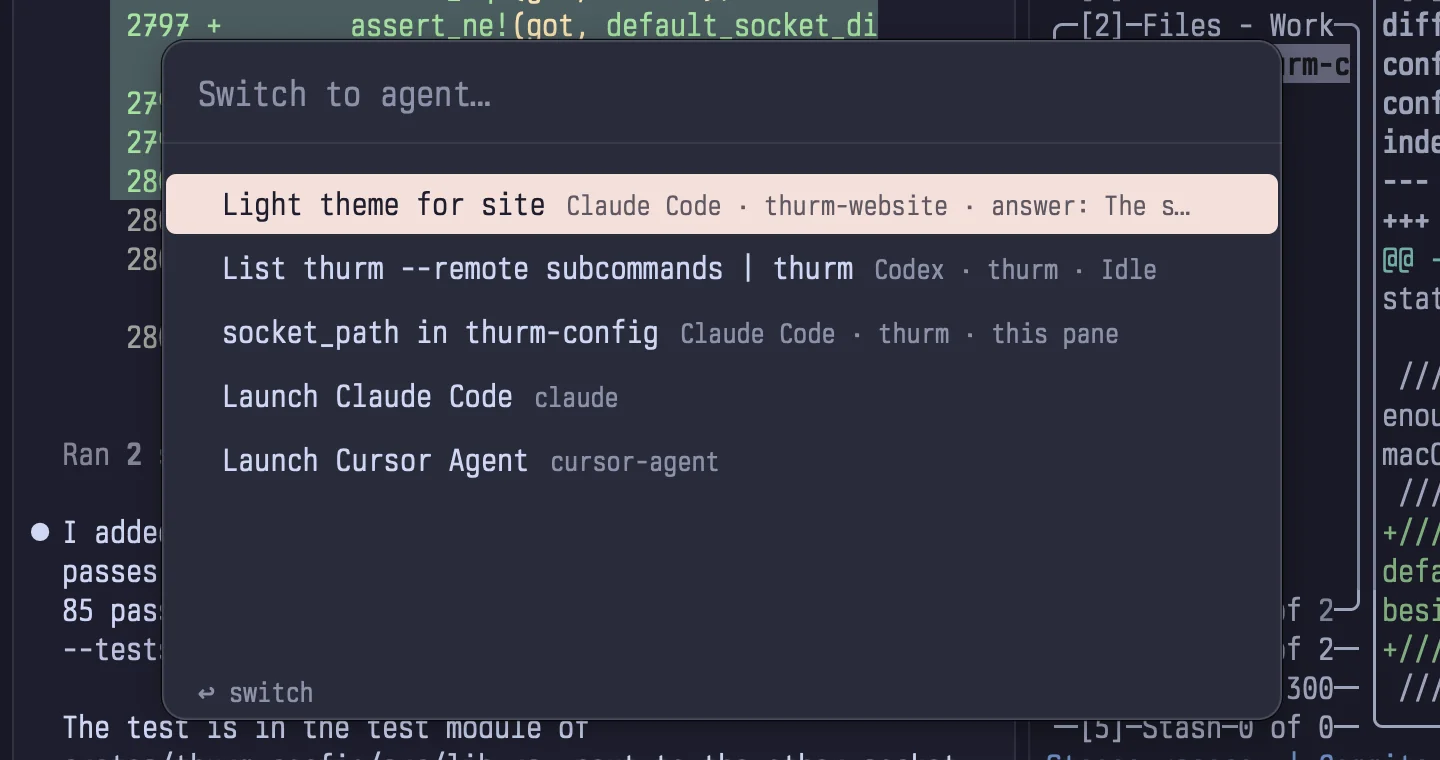
Thurm finds supported agents and shows their status in tabs and in the sidebar's Agents list. Use the agent switcher, ⇧⌘A, to go to one, or start an installed agent from a preset.
- Working
- Needs input
- Done
- Idle
Hooks for Claude Code and Codex
The hooks report when a turn ends, and the session ID. Thurm uses them for notifications, session titles, and commands that wait for a turn. With a session ID, fork a conversation into a new tab or split.
Approve from the notification
Panes without focus send agent notifications. A Claude Code permission request has Approve and Deny buttons in the notification.
Built-in definitions
Claude Code, Codex, Gemini CLI, Aider, OpenCode, and others. Add your own definitions and presets. Thurm uses the agent tools installed on your computer.
thurm presets
thurm launch Codex --split right
thurm agents
thurm wait --pane 4 --agent-done
Scripts can wait for an agent to finish its turn. Agent guide
Quit the app. Your shells keep running.
The thurmd daemon owns the shell processes and the terminal state.
The app only shows them. Quit Thurm and the processes continue; open it again and it connects
to them.
Thurm saves the layout and the working directories every 15 seconds, or now with thurm save. Scrollback stays in memory and is never written to disk, because terminal output often
holds tokens and keys. It survives app restarts and daemon upgrades; after a reboot, panes
start empty.
- Action Quit and reopen the apprunning The processes continue to run.
- Action Close a panestopped The process in that pane stops.
- Action Reboot or restart the daemonrestored Thurm restores the layout and directories and starts new processes.
A saved session cannot bring back the memory of a stopped process. A supported agent can use a resume command to continue a saved conversation.
Workspaces, tabs, and splits
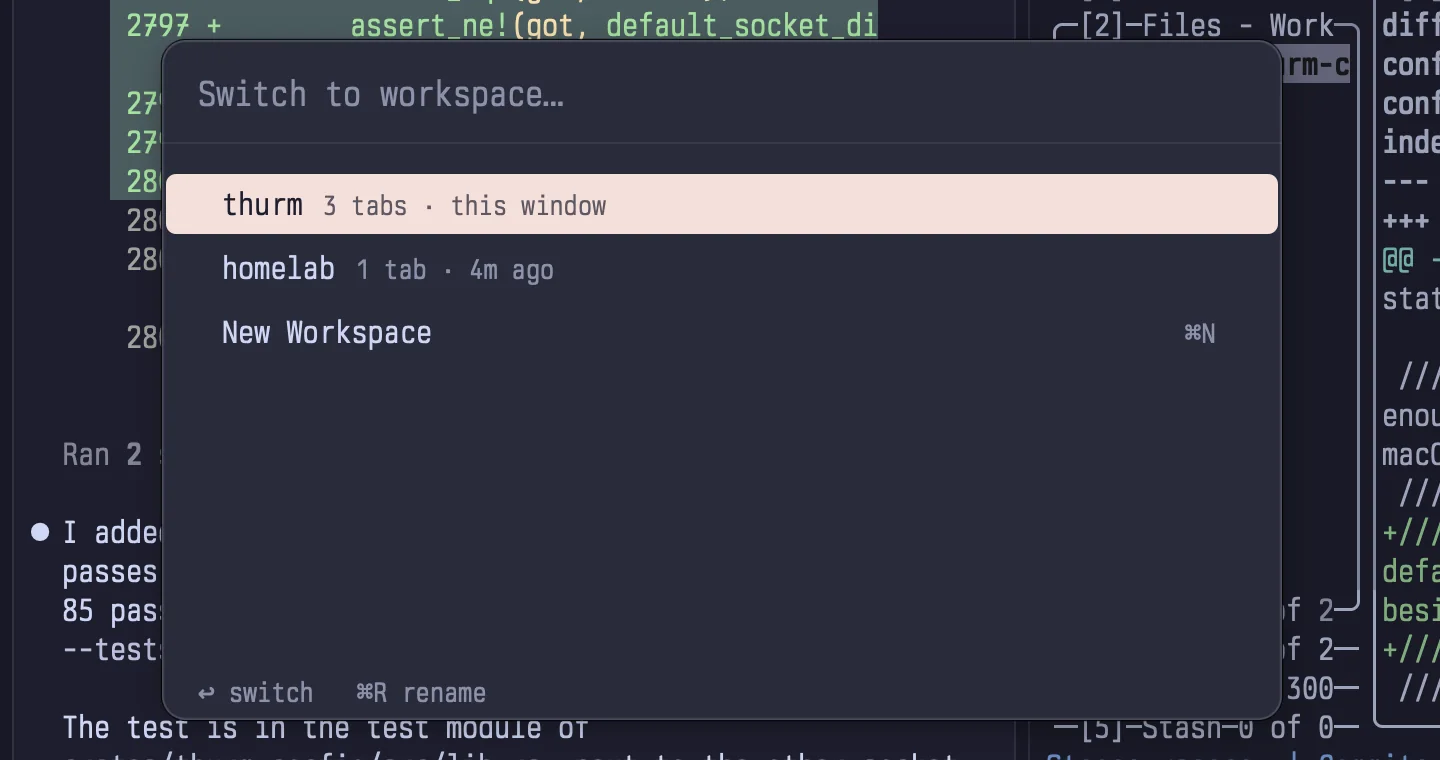
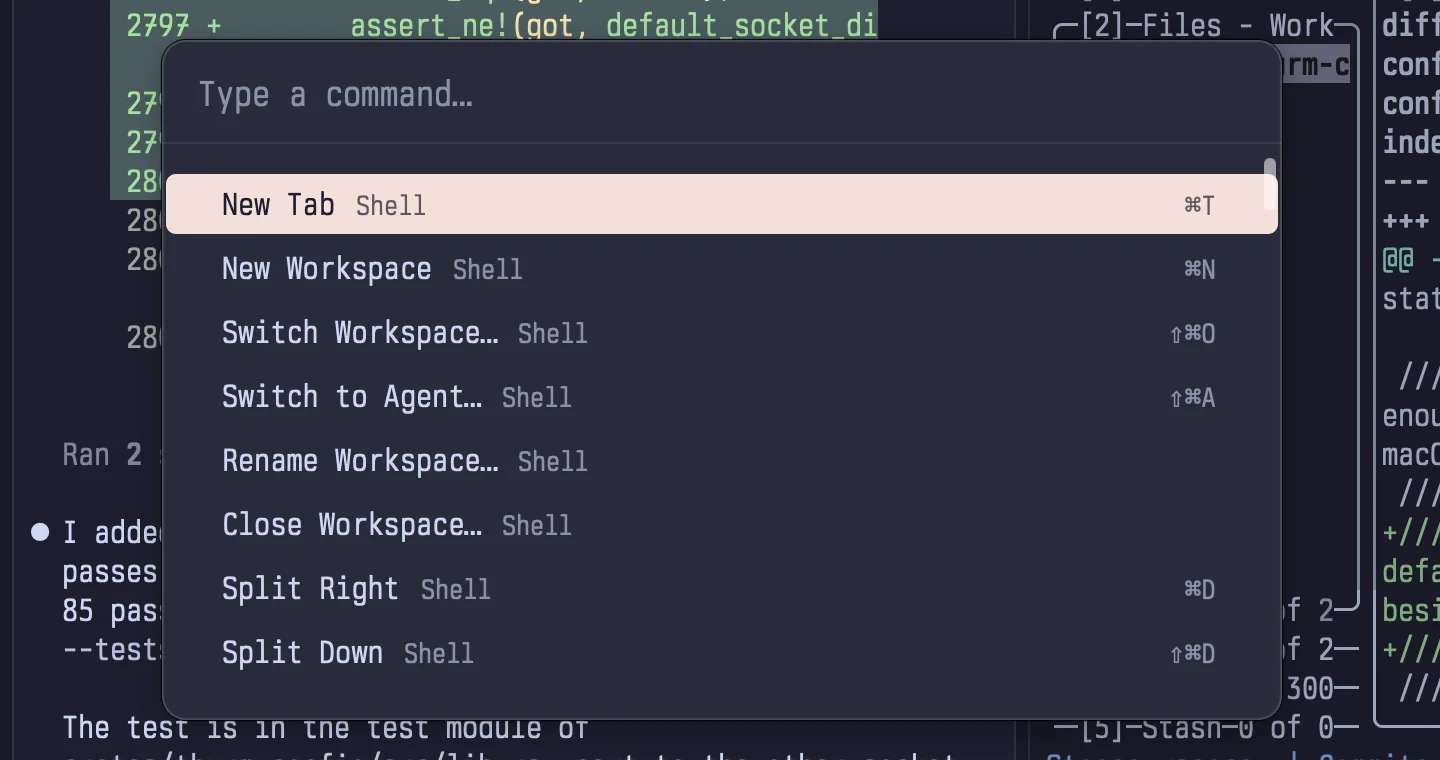
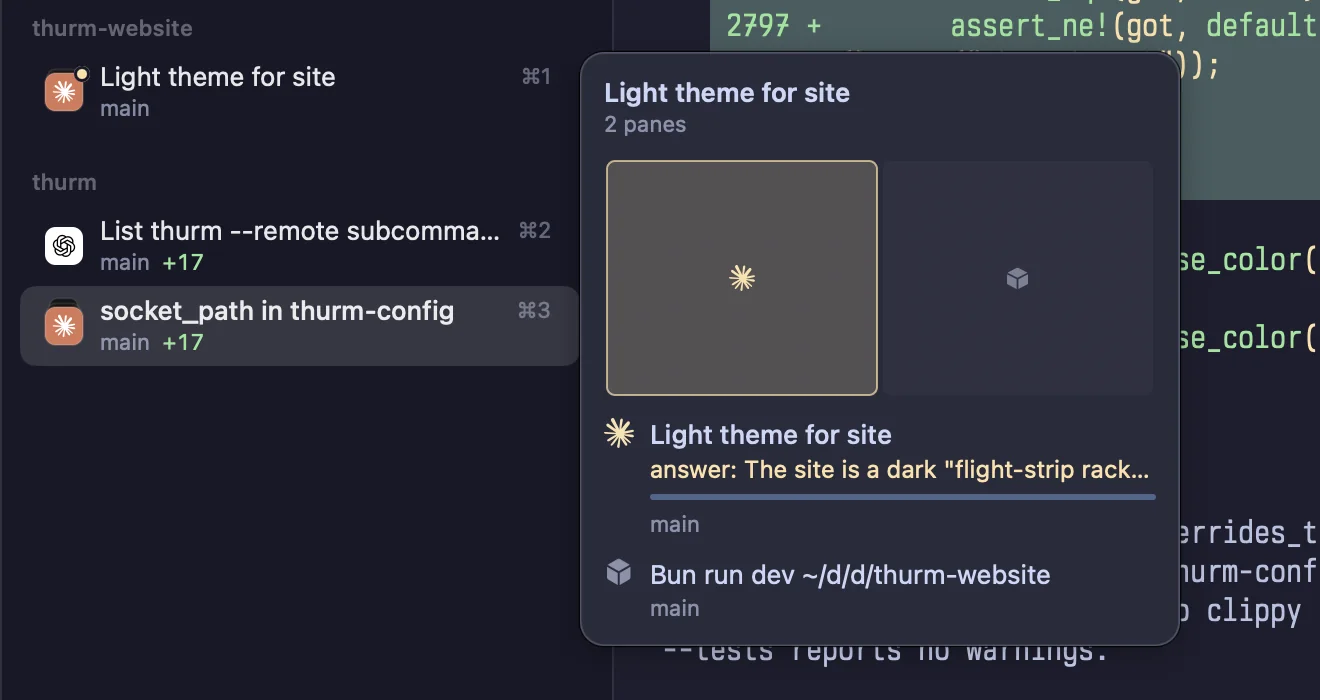
Use a workspace for each project, and tabs and splits inside it. Show tabs in the native tab bar or in a sidebar that groups them by repository; hover a tab to see its panes. Shells in hidden workspaces keep running.
- New tab ⌘T
- New workspace ⌘N
- Split right ⌘D
- Split down ⇧⌘D
- Move between panes ⌥⌘←→
- Zoom a pane ⇧⌘↩
- Command palette ⇧⌘P
- Workspace switcher ⇧⌘O
- Agent switcher ⇧⌘A
- Search scrollback ⌘F
Quick Terminal
Window › Quick Terminal opens a shell you can reach from any app. Set a global shortcut, the screen, the position, and the size. The shell keeps running while it is hidden.
A remote host is one more workspace
Connect to a Linux host or another Mac over SSH. The host shows as a remote workspace, with the same splits, agent controls, and notifications as local tabs. Its processes keep running when your Mac sleeps, changes networks, or quits Thurm.
Thurm uses the system SSH client and your SSH configuration. There is no Thurm account and no relay. Agent forwarding is off. A host can also serve its daemon over Tailscale.
thurm remote add devbox [email protected]
thurm remote doctor devbox
thurm handoff --remote devbox --preset claude
Hosts run Linux x86_64, Linux aarch64, or macOS on Apple silicon. The add command checks the host and can install Thurm on it. Remote guide
Hand a repository to a remote agent
- Bay MacBookSnapshotThurm makes a Git snapshot of the repository, with uncommitted changes and untracked files. Ignored files stay behind.
- Bay devboxBranch and worktreeThe snapshot goes to a new branch and worktree on the host. Your local working tree, index, and stash do not change.
- Bay devboxRemote agentThe agent works in the remote worktree, in a remote tab. You continue your local work.
- Bay MacBookReviewThurm fetches the committed results. You review and merge them; Thurm never merges into your local branch.
Ignored files, like .env and node_modules, never leave your Mac.
Answer your agents from your iPhone
Thurm for iPhone and iPad attaches to the same thurmd on your Mac
and your remote hosts: the same workspaces, tabs, splits, and agent controls. When an agent
finishes or needs input, a push notification reaches your locked phone, with Approve and Deny.
Notifications never carry terminal content. The phone is a client only; your shells stay on your machines. Requires iOS 18 or later.
The app is in beta on TestFlight. To join, email [email protected] and you'll get an invite.
Ask for a TestFlight invite Pairing guide iOS app privacy policy
- Pair iPhoneThe Mac app shows a QR code for your Mac and its remote hosts. Without a Mac, run thurm pair on the host.
- A key that stays on the phoneThe phone makes its key in the Secure Enclave. The private key never leaves it.
- ssh or TailscaleThe app reaches thurmd over ssh, or over Tailscale when the host serves there. It also opens plain hosts without Thurm, over mosh or ssh.
# on a host, without a Mac
thurm tailscale on
thurm pair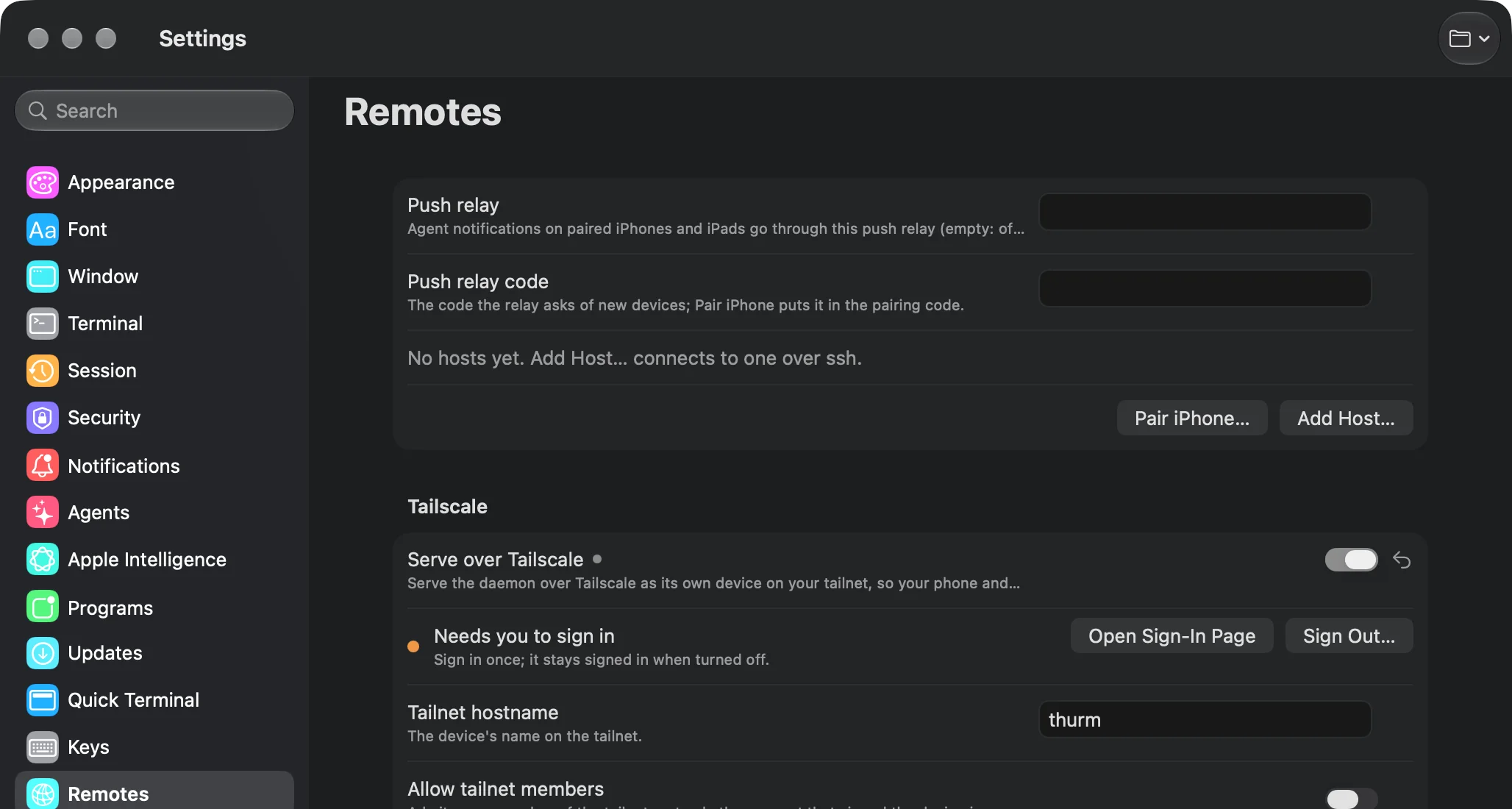
No phone at hand? Open a browser.
A thurmd that serves over Tailscale can also serve a web
client. Open its address in a browser on any device in your tailnet, like https://thurm.your-tailnet.ts.net/, and you have the same
sessions as on the Mac and the phone.
There is no password and no token: the page lets in your Tailscale account, as the phone app does. It is off by default, and needs Thurm 0.9 or later.
- SessionsYour workspaces and tabs, with split panes laid out as on the Mac.
- InputTyping, paste, selection, and scrollback.
- AgentsAgent status, and notices with Approve and Deny.
- Mac app onlyImages, changes to the layout, and settings.
thurm tailscale on
thurm set tailscale.web true
thurm tailscale status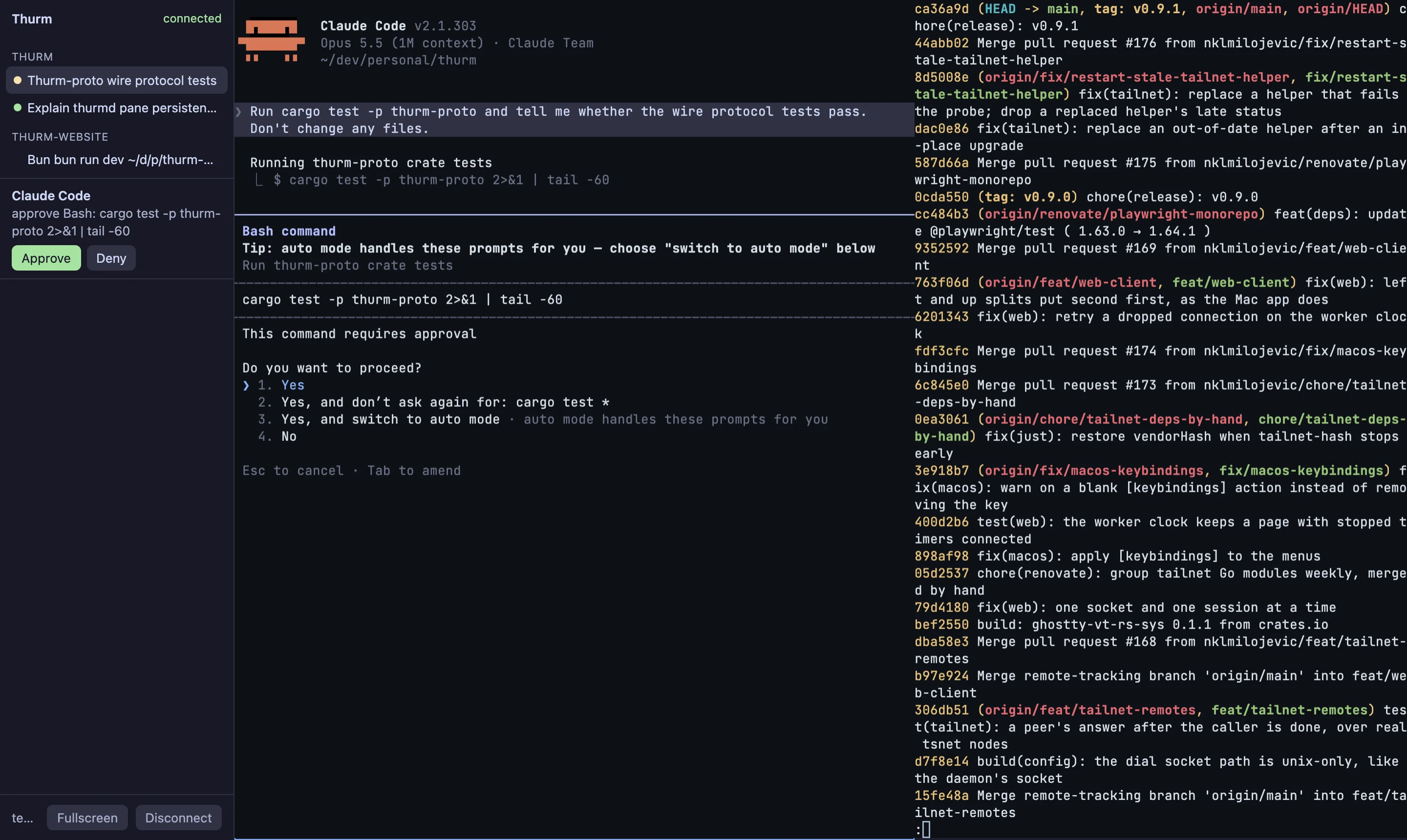
Script the panes you see
Scripts and agents use the thurm CLI on the same panes you
see in the app. Open a split, send input, wait for a prompt or a match, and read the
screen. A timed-out wait exits with 124; add --json for structured
output.
pane=$(thurm split --dir right)
thurm wait --pane "$pane" --prompt --timeout 10
thurm send --pane "$pane" 'bun run build'
thurm wait --pane "$pane" --prompt --timeout 60
thurm capture --pane "$pane" -n 20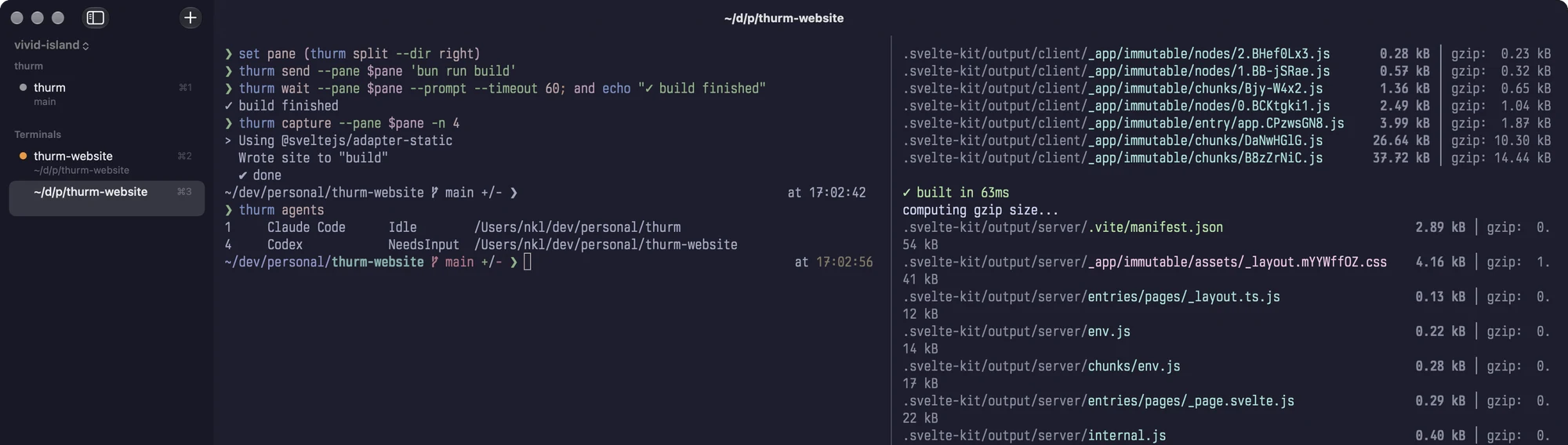
Your own commands and event hooks
Everything lives in ~/.config/thurm/config.toml. A [[commands]] entry adds a command to the palette and to a
key. An [[on]] entry runs a program when an agent finishes, waits,
or fails, when a command finishes, or when a pane exits, even with no window open.
After an edit, run thurm reload. Configuration guide
[colors]
theme = "light:catppuccin-latte,dark:catppuccin-mocha"

[[commands]]
name = "Dev layout"
exec = ["~/bin/dev-layout", "--branch", "main"]
key = "cmd+shift+l"

[[on]]
event = "agent_finished"
exec = ["~/bin/agent-done"]
The terminal itself
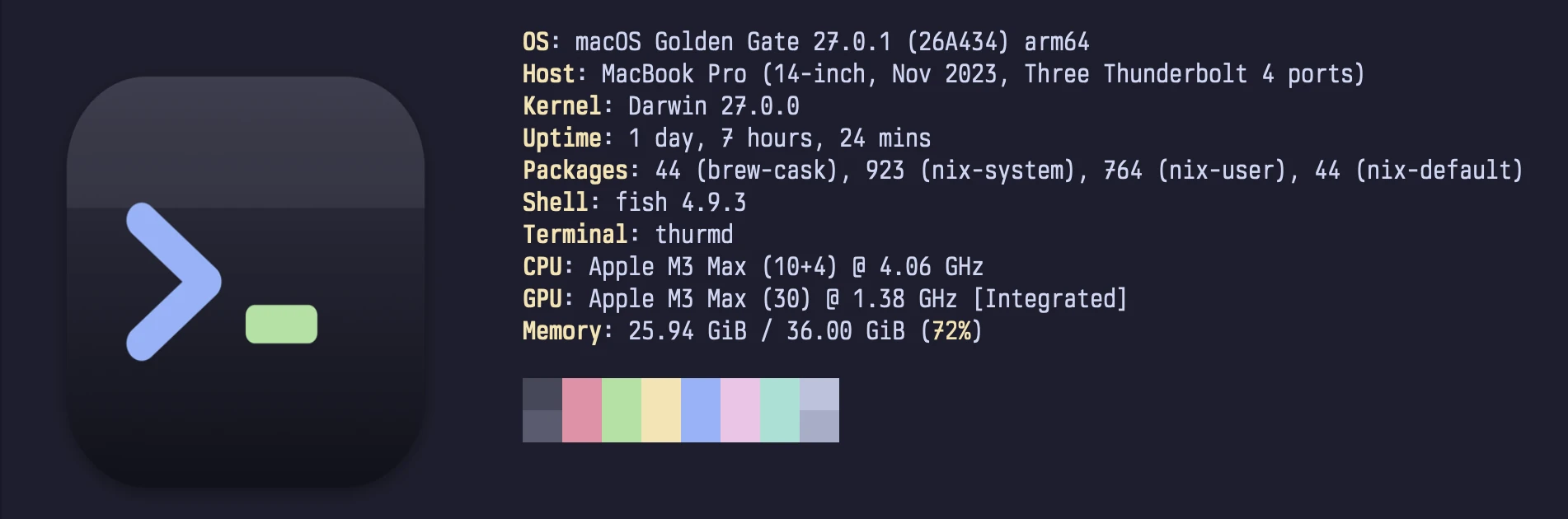
The interface uses AppKit. Metal and CoreText draw the text and images, and libghostty-vt keeps the terminal state.
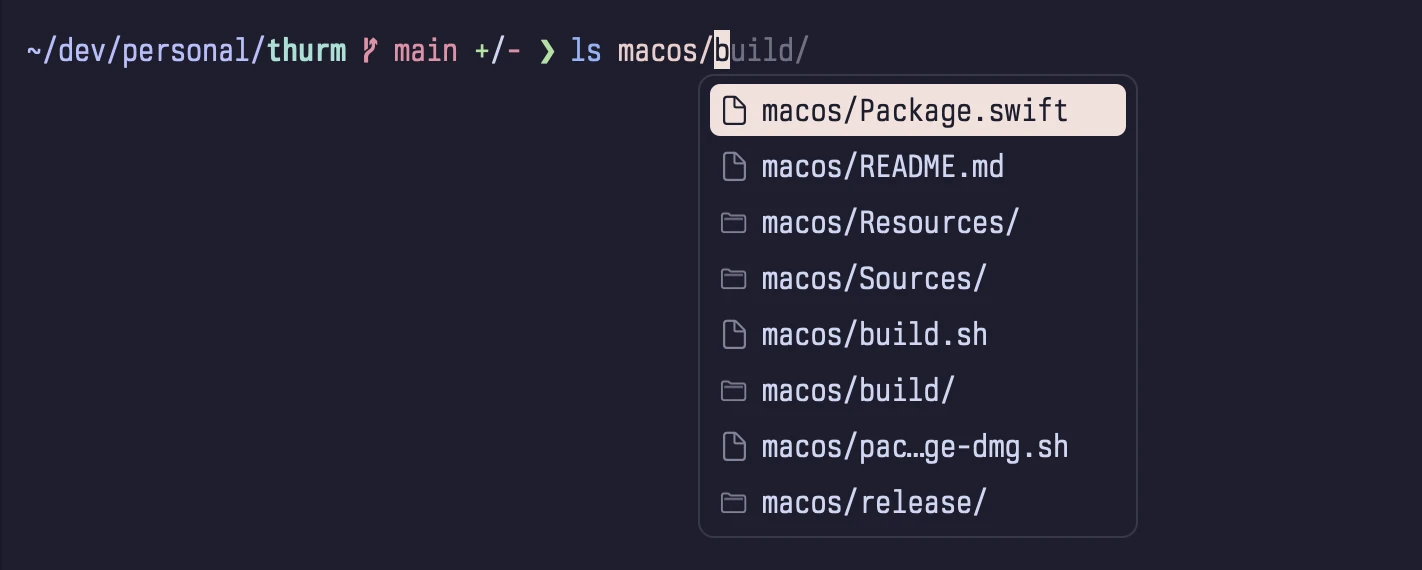
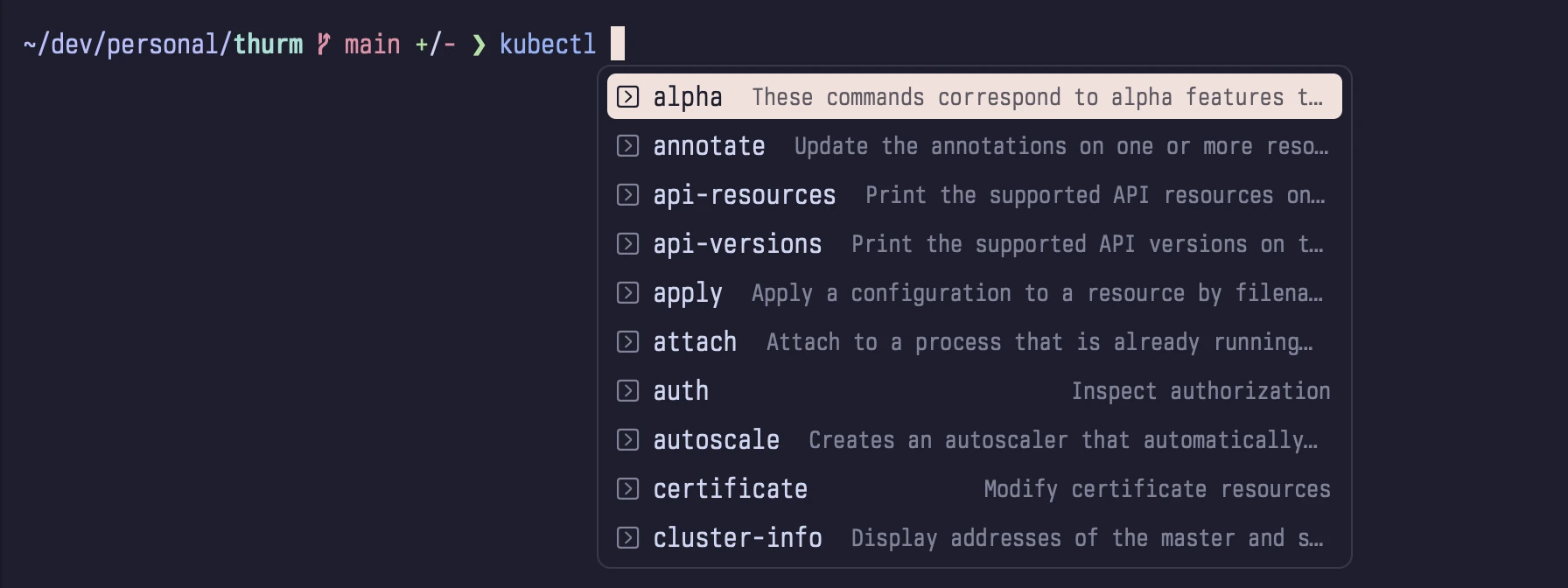
- Shell integration
- Prompt marks, working directory tracking, and completions for zsh, bash, and fish.
- Text and images
- Font ligatures, bundled JetBrains Mono and Nerd Font symbols, and the kitty keyboard and graphics protocols.
- Navigation
- Scrollback search, prompt-to-prompt navigation, and Cmd+click to open URLs.
- Appearance
- Themes that follow light and dark mode, font settings, text contrast, Display P3, and custom key bindings.
- Input protection
- Secure Keyboard Entry turns on at password prompts. Thurm asks before it pastes several lines outside bracketed paste mode.
- Notifications
- Alerts for agents, and for commands that run 15 seconds or more in a pane without focus.
On-device Apple Intelligence
Off by default. Needs macOS 26 or later with Apple Intelligence on. The model runs on your Mac, never during a password prompt, and each feature turns on separately.
- Name agent tabs from the task
- Find unanswered questions for agents without hooks
- Summarize agent notifications
- Explain the last command
Install Thurm
macOS 14 or later on Apple silicon. Remote hosts: Linux x86_64, Linux aarch64, or macOS on Apple silicon.
- 1Download Thurm.dmg.
- 2Open the disk image and drag Thurm to Applications.
- 3Eject the disk image, then open Thurm from Applications.
- 4For the CLI, select Thurm › Integrations › Install Command-Line Tool, then run thurm --help.
For nightly builds, download Thurm-tip.dmg or select Thurm › Update Channel › Tip. Sparkle installs updates.